 Nut Studio
 Explore
 What's New


Generate Watermark-Free AI Videos Instantly
Nut Studio gives you access to Veo 3, Kling, PixVerse, and more AI video models in one platform—all generating clean, watermark-free videos ready to publish. No removal tools needed.
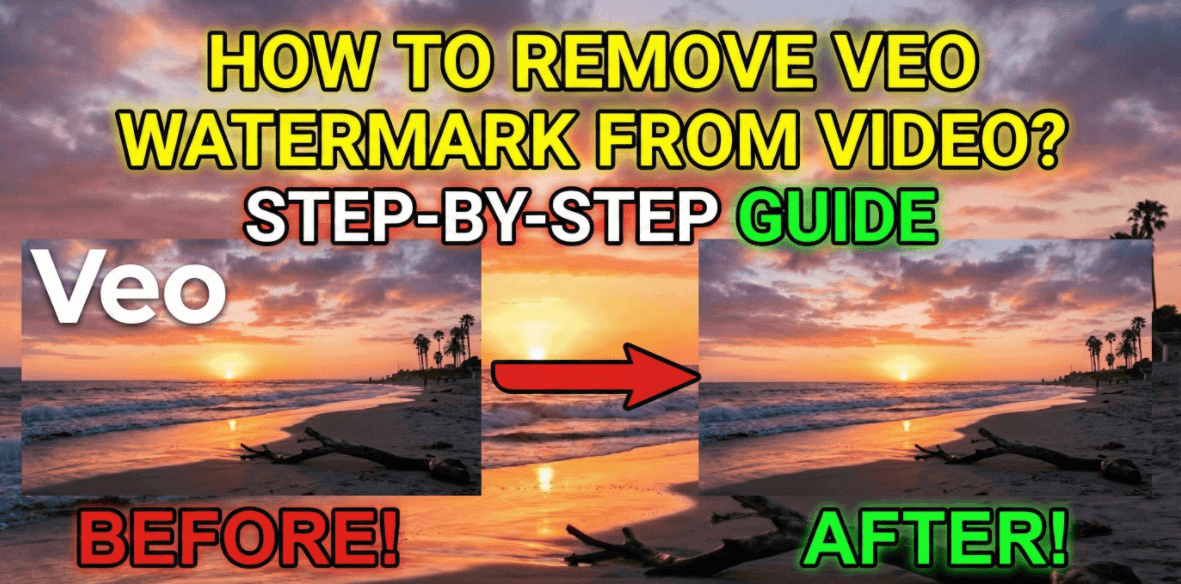
Google's Veo video capabilities are getting more impressive by the day, and many of you have probably experimented with Veo 3 to generate videos. But there's one persistent headache that keeps coming up: watermarks. Even if you're paying for a Gemini Advanced subscription, your videos still come stamped with that prominent 'Veo' branding, which affects both the visual appeal and how you can actually use these videos. There's always that nagging concern about whether it'll impact sharing or potential commercial use. It's frustrating to spend all that time creating content only to feel restricted about using it freely because of a watermark—I totally get it.
In this article, I'll break down exactly what's going on with Veo 3's watermarks, why they're still there even on paid plans, and share some practical free tools for removing them. I'll even introduce alternative tools that can generat e videos without visible watermarks, so you can finally put this annoying issue to rest.
CONTENT:

Why is there a Veo watermark?

Even with an official Gemini Pro account, you may still see a visible “Veo” watermark on exported videos. That's intentional: it helps with AI transparency and reduces the risk of misleading redistribution. And removal may only be available on Ultra at $249.99 per month—which is quite expensive. Or through certain higher-tier premium plans, depending on the specific product and distribution channel.
Separately, all Veo videos must include an invisible SynthID watermark. Think of it as an 'invisible ID card' for AI-generated content—it's a Google requirement designed to identify AI-created videos, prevent the spread of misinformation, enable content tracing, and comply with relevant regulations. The SynthID watermark is hard to remove.
Anyway, I completely understand the frustration when visuable watermarks affect your video's visual quality and make it less convenient to use. Later, I'll introduce some free watermark removal tools to help you work around these practical challenges.
4 Free Veo 3 Watermark Remover
1 Media.io

Rating: ⭐⭐⭐☆☆ (3.5/5 Stars)
Summary: Media.io offers a highly polished, professional interface with advanced removal algorithms that outperform many basic competitors. However, it functions more like a "freemium" trial than a truly free tool, as the restrictions on the free plan (such as potential watermarking or limited processing minutes) can be a hurdle for casual users.
Navigating to the Media.io interface, I was immediately impressed by the level of control it offers compared to other web tools. Instead of just a single "erase" button, I could choose between specific modes like "Standard AI," "Gaussian Blur," and "Clone Patch." After spending time carefully highlighting the watermark, I realized that the free tier has strict limits on video duration and export options. It felt like using professional software in a web browser, but be prepared: if you have a large batch of videos to clean, you will likely hit the paywall or queue limits quickly.

Features:
- Advanced Removal Modes: Unlike basic tools, it offers distinct algorithms including AI Model, Gaussian Blur, smooth filling, and clone patching for precise edits.
- Dedicated TikTok Mode: Features a specific tab for "TikTok Watermark Remover," optimized for social media content.
- Cloud-Based Processing: Fully browser-based with no software installation required; works across desktop and mobile devices.
- Privacy Protection: Uploaded files are secure and generally deleted from the servers within 7 days.
- Integrated Creative Suite: The tool is part of a larger ecosystem, offering easy access to other AI tools like "Image to Video" and "Video Enhance" in the sidebar.
Strengths

- Superior control with smooth/color filling options for complex backgrounds
- Modern, intuitive interface without ad clutter
- High-quality AI inpainting and task queue management
Weaknesses

- Free tier restrictions on exports and potential watermarks
- Queue wait times during peak hours; internet-dependent
- Account creation often required for downloads
2 Hitpaw

Rating: ⭐⭐⭐⭐☆ (3.8/5 Stars)
Summary: HitPaw offers a very polished and professional-looking interface that bridges the gap between a quick online tool and robust desktop software. The actual removal technology is solid for a browser-based tool.
While I could remove the watermark, the free online version capped my output quality at 720p. It's a classic trade-off: you get convenience and safety for free, but if you want professional 1080p+ quality or need to process a batch of videos, the site heavily pushes you toward the paid desktop version. It's excellent for casual social media use, but professionals will likely hit the paywall fast.
Features:
- Dual Platform Access: Offers both a quick web-based tool for immediate use and a downloadable desktop client for heavy-duty processing.
- AI-Infilled Removal: Uses advanced algorithms to attempt to restore the background behind the watermark rather than just blurring it.
- High Security: Emphasizes a 100% safe environment with no malware or viruses, which is a common concern with free online converters.
- Simple Workflow: Designed for non-technical users with a straightforward upload-process-download system.
- Cross-Platform Support: The online version works across different operating systems, while the specific desktop download is optimized for Windows (as seen in the screenshot).
Strengths
- No Installation Needed: The online version allows for immediate editing without cluttering your hard drive
- Clean Interface: Very easy to navigate with clear calls to action
- Safe to Use: Reliable security protocols ensure your files and device remain safe
- Decent AI Results: Performs better than standard blur tools on simple backgrounds
Weaknesses
- Quality Caps: Free online exports are often limited to 720p resolution
- Export Limitations: You may face limits on how many videos you can export per day without paying
- Upsell Pressure: The interface frequently encourages downloading the paid desktop software for "full features"
- Internet Dependent: The online tool requires a strong connection, especially for uploading larger video files
3 Vmake.ai

Rating: ⭐⭐⭐⭐☆ (4.0/5 Stars)
Summary: Vmake.ai delivers a surprisingly robust and user-friendly experience for quick watermark removal tasks. It stands out for its "no signup required" initial claim (though credits eventually require login) and its clean, distraction-free interface. While the credit system limits heavy usage, the quality of the AI removal on short clips makes it a strong contender for casual users needing a quick fix.
For Vmake.ai, the first thing I noticed was the simplicity. There are no confusing menus or aggressive ads—just a clear "Upload" button. The removal quality was impressive for an automated tool. It didn't just blur the area; it attempted to reconstruct the background, which worked well for static shots. However, the "Free" aspect is a bit of a teaser. You get about 5 free credits to start, which is enough for a couple of short tests, but once those are gone, you hit a hard paywall. It's excellent for a one-off emergency edit.
Features:
- AI-Powered Detection: Automatically identifies and erases logos, text, timestamps, and other unwanted objects without manual masking in many cases.
- Batch Processing: Allows users to upload up to 3 files at a time, speeding up the workflow for multiple clips.
- Wide Format Support: Accepts popular video formats including .mp4, .mov, .m4v, .3gp, and .avi.
- No Initial Signup: Users can often upload and preview results immediately without creating an account first (though downloading may eventually trigger a login prompt).
- Credit-Based System: Operates on a credit economy, giving users flexibility to pay only for what they use rather than a flat monthly subscription if they prefer.
Strengths
- High-Quality Output: The AI reconstruction is often cleaner than simple blur tools, preserving video aesthetics
- Extremely Easy to Use: The interface is minimalist and requires zero technical knowledge
- Fast Processing: Short clips are processed rapidly, making it great for quick social media edits
- Safe & Secure: Claims 100% safety with no software downloads required
Weaknesses
- Strict Credit Limits: The ~5 free credits run out very quickly, making it unsuitable for long-term free use
- File Size/Length Restrictions: Free credits are best used on short clips; longer videos drain resources or are blocked
- Complex Backgrounds: Like most AI, it may struggle with highly dynamic backgrounds (like rushing water or crowds) behind the watermark
- Internet Dependent: Requires a stable connection for uploading and processing video files
4 Ezremove.ai

Rating: ⭐⭐⭐⭐☆ (4/5 Stars)
Summary: A surprisingly clean and capable tool for quick edits. It delivers on its promise of "no sign-up" simplicity, though heavy users might find the processing times variable depending on their internet connection.
I dragged my file into the box, used the manual brush to highlight the logo, and hit process. The AI did a solid job of filling in the background—it wasn't Hollywood CGI perfect, but for a free web tool, the background reconstruction was much better than a simple blur. It saved me about 20 minutes of firing up complex video editing software just for a simple fix.
Features:
- Zero-Friction Access: No software installation or account sign-up is required to start editing immediately.
- Dual Functionality: A simple toggle allows users to switch between video and image watermark removal instantly.
- High-Quality Output: Supports up to 4K resolution (3840px) without degrading the file quality.
- Generous Free Limits: Allows file uploads up to 500MB and durations up to 5 minutes, which is higher than many competitors.
- AI-Driven Restoration: Uses AI to reconstruct the background behind the watermark rather than just blurring it.
Strengths
- Clean User Interface: The design is minimalist and intuitive. The drag-and-drop zone is large and clear, making it impossible to get lost
- Privacy Focused: Files are processed locally or deleted quickly; it feels safer than uploading personal videos to a random server
- Hybrid Control: The option to let AI auto-detect or manually brush over the watermark gives great flexibility for tricky logos
- No Watermark on Export: It doesn't replace the old watermark with its own branding, which is a common annoyance with "free" tools
Weaknesses
- Internet Dependency: Since it's browser-based, uploading a 500MB 4K video requires a strong and stable internet connection
- Format Limitations: While it handles MP4 and M4V, support for other common formats like MOV or AVI isn't explicitly listed on the main screen
- Queue Times: During peak hours, the AI processing for video rendering can take a bit longer than a native desktop app
- Manual Precision: While the manual brush is good, using it on a trackpad for moving video objects can be a bit finicky compared to a mouse
Now, if you'd rather avoid the whole watermark removal process altogether, there's a simpler solution: use an AI video generator that doesn't add watermarks in the first place. Here are some solid alternatives to Veo 3 that let you create videos without the extra editing step.
Best VEO 3 Video Generator for No Watermark
1 Nut Studio

Here's a better approach: As a unified creative powerhouse, Nut Studio gives you access to multiple AI video generators without watermarks—including Veo 3, Kling, PixVerse, Runway and more—all in one place. No editing required, no extra steps, just clean, ready-to-use content from the start idea.
Nut Studio goes beyond raw generation to offer a seamless creative process. Use the integrated AI Chat to brainstorm ideas, draft scripts, and refine prompts—taking you from rough concept to polished video without leaving the platform. Best of all, new users get 100 Free Coins on sign-up to test the best models risk-free. Whether you're creating social content or ads, you get professional, watermark-free results without juggling multiple subscriptions.
How to Use
Step 1: Launch Nut Studio and Sign Up for Free Credits
Head to the Nut Studio platform and choose your preferred workspace: launch the web version for instant access, or download the Windows app for desktop use with offline capabilities. Create your free account to receive 100 coins—no credit card required. These credits give you plenty of room to experiment with different models and find what works best for your projects.
Step 2: Select Your Model and Input Your Creative Vision

Once you're in, choose from multiple AI video models including Veo 3, Kling, PixVerse. Enter your text prompt describing the video you want to create, or upload a reference image if you're working on an image-to-video project. Both approaches work seamlessly—just describe your vision in detail for the best results.
Step 3: Generate and Download Your Watermark-Free Video
Click the generate button and let the AI work its magic. Depending on video length and complexity, processing typically takes a few minutes. Once complete, preview your result and download it directly—completely watermark-free and ready to use. No editing, no removal tools, just clean video content ready for publishing, sharing, or commercial use.

Features from Nut Studio
- 🎬 Multiple AI Creation Models: Access Veo 3, Kling, PixVerse, Nano Banana, and Seedream in one place—compare results side-by-side to find your perfect output.
- ✨ 100% Watermark-Free Output: Every video exports clean with no branding or restrictions—ready to publish, share, or use commercially.
- 🔒 Privacy-First Design: Your prompts stay private with no logging or model training. Run models locally on your device for complete offline control.
- 🎁 100 Free Coins for New Users: Start risk-free with 100 coins to create your first watermark-free videos—no credit card required.
2 EaseMate

EaseMate AI might also be worth a look. It's an all-in-one platform offering text-to-video generation, photo tools, document summarizers, and even academic solvers for math and physics. The platform provides access to models like Google VEO 3, Runway, and Kling, with 30 free credits to get started and daily credit refreshes to keep you going.
The standout feature? EaseMate AI allows watermark-free downloads on its free tier. While the credit system limits daily generation—requiring you to wait for refreshes or upgrade—it remains a solid free option for occasional use alongside other AI tools.
Features:
- Watermark-Free Downloads: Export videos without watermarks on the free tier, ready for commercial use immediately.
- No Sign-Up Required: Start creating instantly without account registration—ideal for quick projects.
- All-in-One AI Toolkit: Access video generation, document summarizers, photo editors, and academic solvers in one platform.
FAQs
Can people remove VEO 3 watermarks?
Yes, people can and do remove Veo 3 watermarks using the methods mentioned above. However, it is important to distinguish between the visible watermark (the logo/text on the screen) and the invisible SynthID watermark (embedded in the file data).
Do watermark removal tools affect video quality?
Quality depends on the tool and watermark complexity. Modern AI-powered removers generally preserve video quality well, but results vary. Some tools may cause slight blur or artifacts in the watermark area, so always preview before final export.
Conclusion
It's frustrating when even paid tools like Veo 3 enforce watermarking for transparency. You generally have two paths to a clean video: using third-party removal tools (which can be a gray area) or switching to aggregators like Nut Studio that prioritize watermark-free outputs across different models. Whichever route you take, having a strategy for clean video output is essential for professional work.


Aaron brings over a decade of experience in crafting SEO-optimized content for tech-focused audiences. At Nut Studio, he leads the blog’s content strategy and focuses on the evolving intersection of AI and content creation. His work dives deep into topics like large language models (LLMs) and AI deployment frameworks, turning complex innovations into clear, actionable guides that resonate with both beginners and experts.


Was this page helpful?
Thanks for your rating
Rated successfully!
You have already rated this article, please do not repeat scoring!